
Computer Services

Eastern New Mexico University - Roswell
1 (575) 624-7491[email protected]

Computer Services

Eastern New Mexico
University - Roswell
1 (575) 624-7491
ATTENTION STUDENTS
Having trouble logging in to Cosmolink or Canvas? Please read our short guide!

Need Help?

The Computer Services department at ENMU-Roswell is responsible for managing the campus’s network infrastructure, software ecosystem, computer systems, classroom equipment, website, and student portal. We also provide front-line IT support to our students, faculty, and staff through our friendly help desk.

If you need assistance, you may reach us by phone at 1 (575) 624-7491.

Alternatively, you can send your request to [email protected] or complete and submit a service request form.

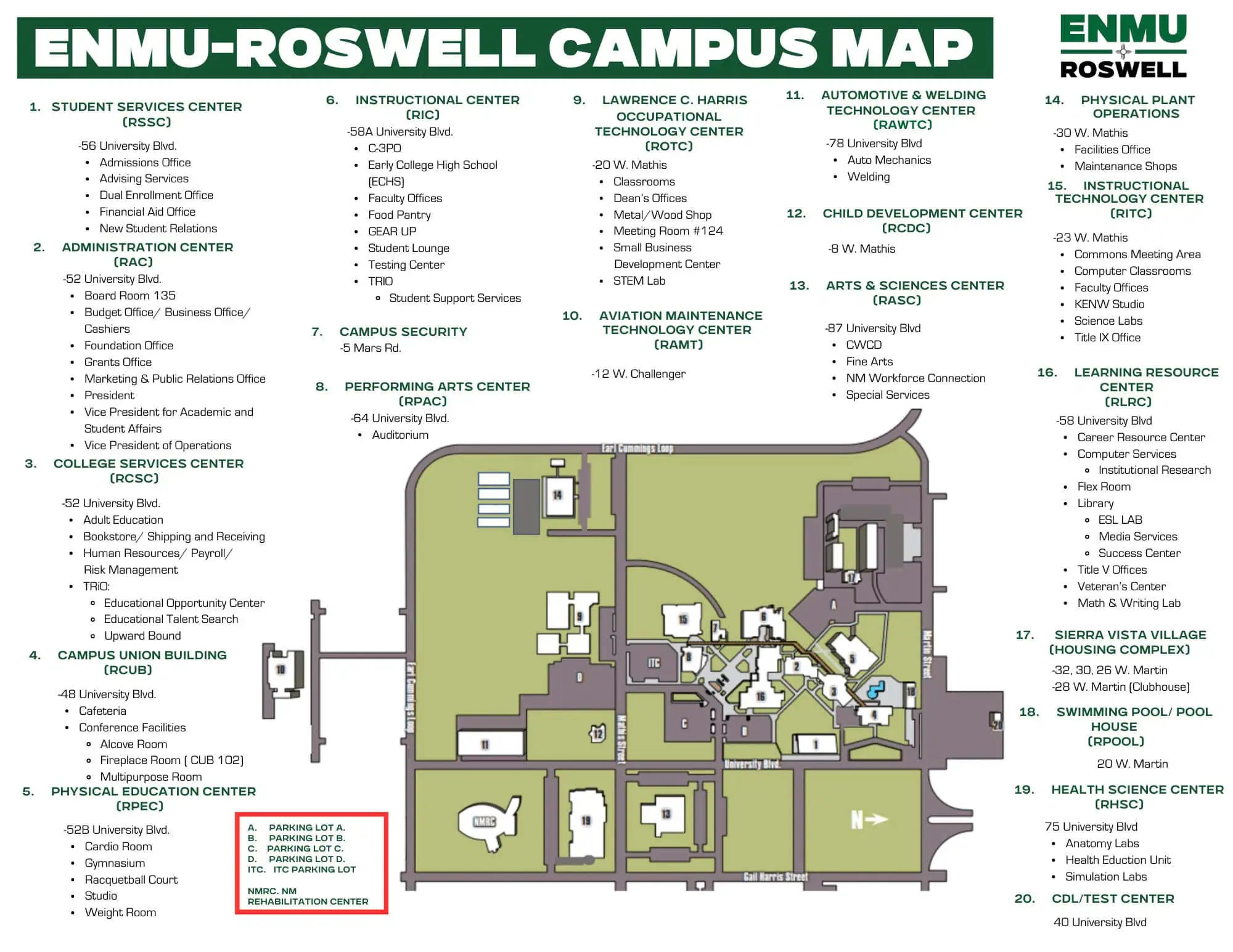
We are located inside of the Learning Resource Center (LRC) Library, toward the back and on the right in Suite 110. Ask at the library front desk if you need guidance.

We are available

Monday - Thursday
7:30 AM to 6:00 PM

and on Friday
8:00 AM to NOON

Computer Services is located inside of the Library (LRC), toward the Northeast corner

Trouble Logging In?

I don't know my username or password

If you are a new student who has never logged in to the student portal (Cosmolink) before, you may need to use the Account Pickup tool to discover what your username, ENMU email address, and initial password are.

If you are a returning student, this tool can also be used if you simply forgot what your username is after a long break between attending courses. You can use the tool as many times as you need.

Everytime I try to log in, it says that my username or password is wrong

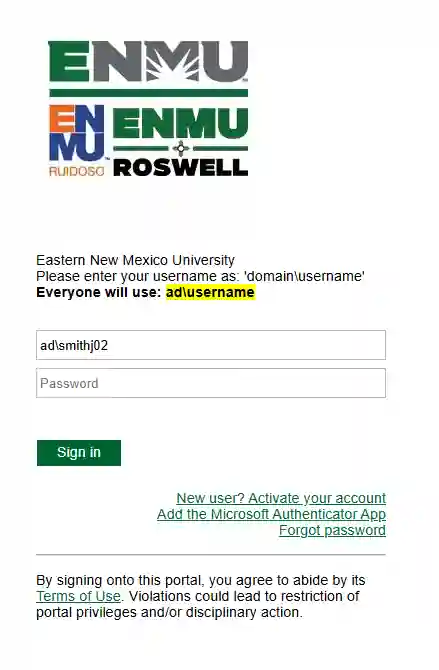
Whenever signing into Cosmolink, you will need to enter the domain name followed by the backslash character (‘\‘) before entering the username.

There are no spaces between the domain, the backslash, and the username.

We have moved all students to the AD domain. You will no longer sign in using the SD domain.

Your login should look like this: ‘ad\your_username’
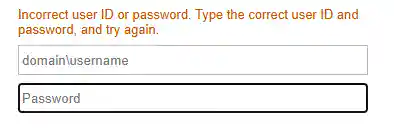
A screen capture of the ENMU-Roswell Portal login page after a failed login attempt.
A screen capture of the ENMU-Roswell login portal

For security reasons, we require additional information to verify your account

Once you have successfully logged in, you may be asked to set up Multi-Factor Authentication (MFA). We use the Microsoft Authenticator app to verify your identity after you log in with your password.

At this point, you will be automatically redirected to the MFA setup page.
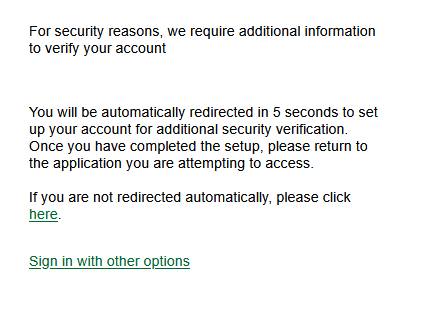
The is a screen capture of the MFA message requiring more information to verify account.

STEP 1: Download the App

You will need to install the Microsoft Authenticator app on your phone to continue. This app is in the Apple App Store and the Google Play Store.

Just click next until you see a QR code.
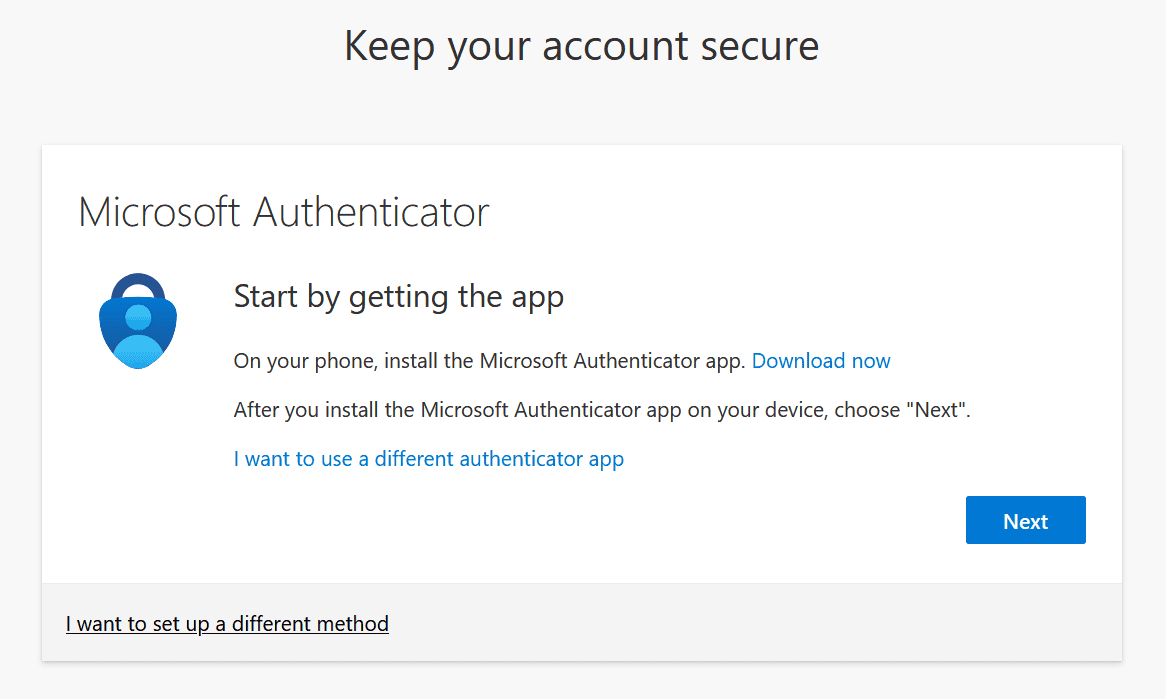
The is a screen capture of page one of the Microsoft Authenticator setup process.

STEP 2: Scan the QR Code

After downloading and installing the Microsoft Authenticator app to your phone, open it. You will see an option to ‘Scan a QR Code’.

Scan the QR code you see on your computer using the Microsoft Authenticator app.
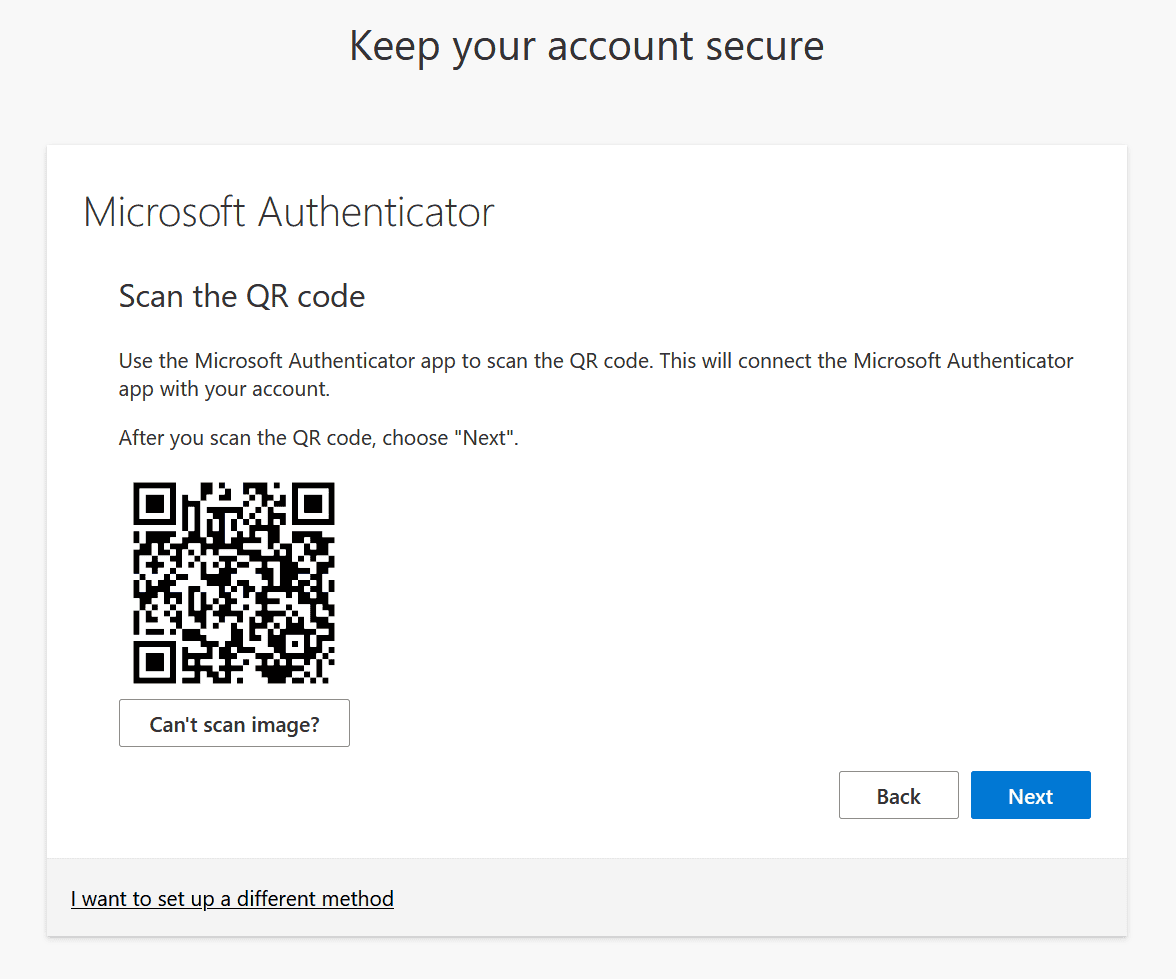
The is a screen capture of page three of the Microsoft Authenticator setup process.

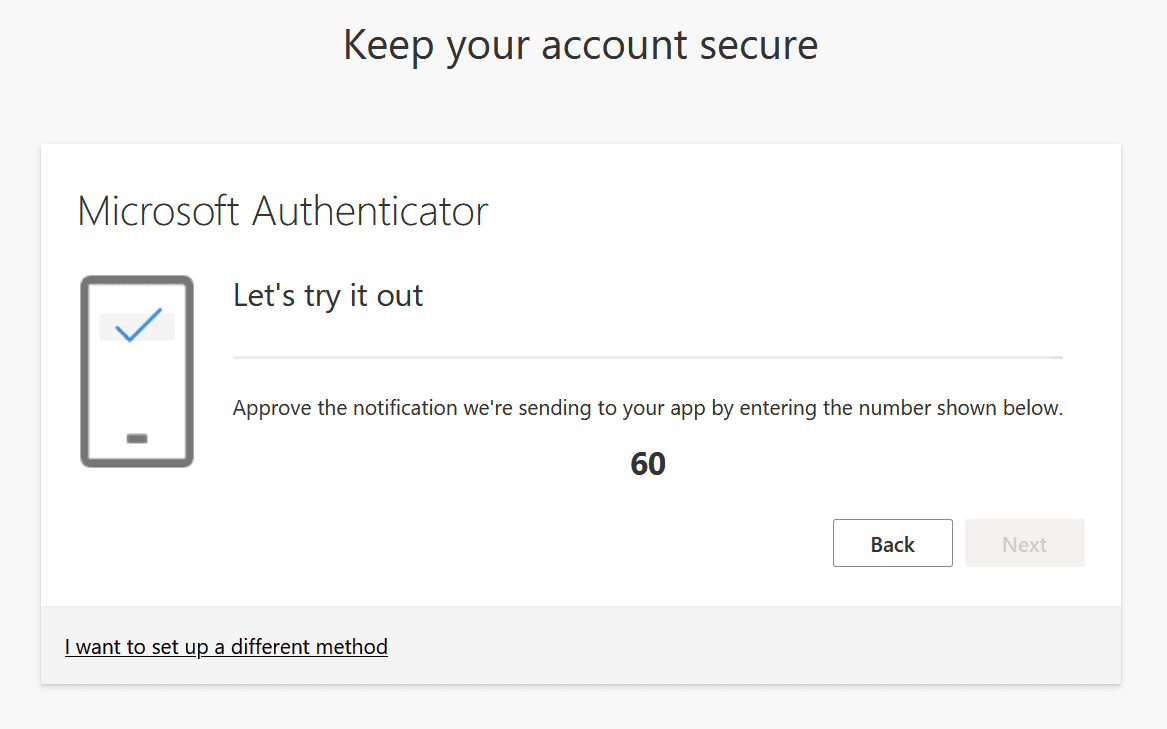
STEP 3: Verify the Code

To verify that your account is set up properly, the system will send a notification to your Microsoft Authenticator app on your phone. In the app, you will need to enter the two-digit code that you see on your computer screen.
The is a screen capture of page three of the Microsoft Authenticator setup process.
If you need more detailed instructions for setting up MFA, please read the MFA Setup Guide

Meet the Computer Services Team

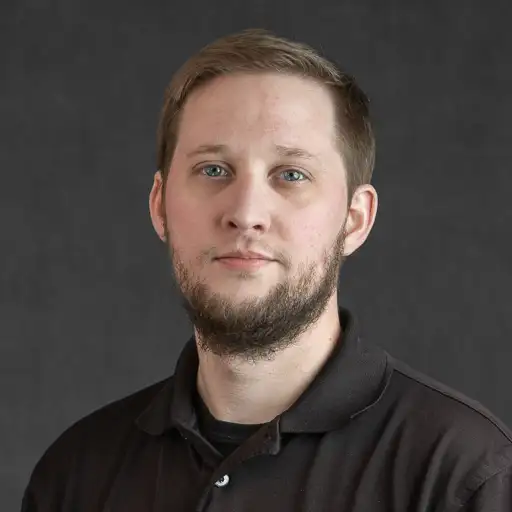
Portrait of Jacob Puckett

Jacob Puckett

Director of Information Tech.


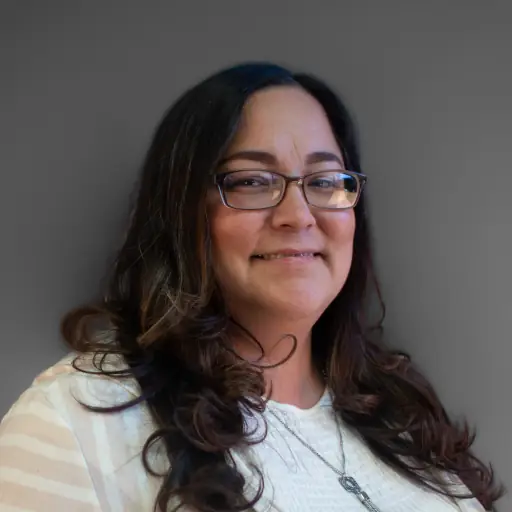
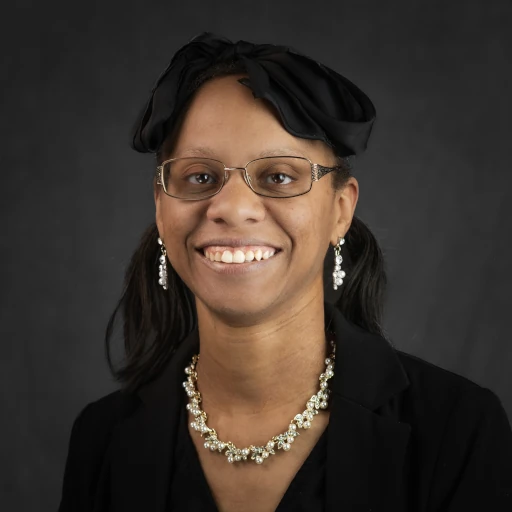
Portrait of Georgette Witherspoon

Georgette Witherspoon

Information Technology Administrative Assistant


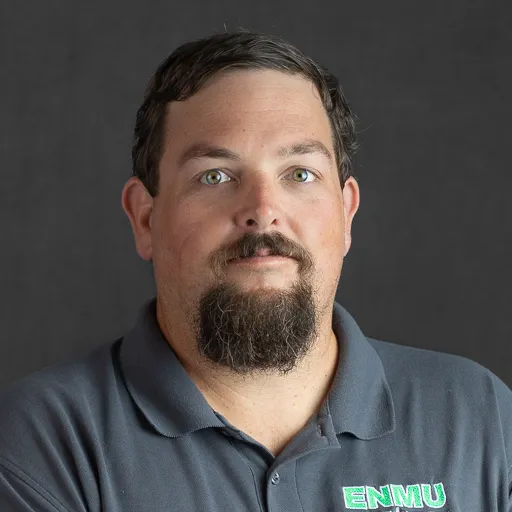
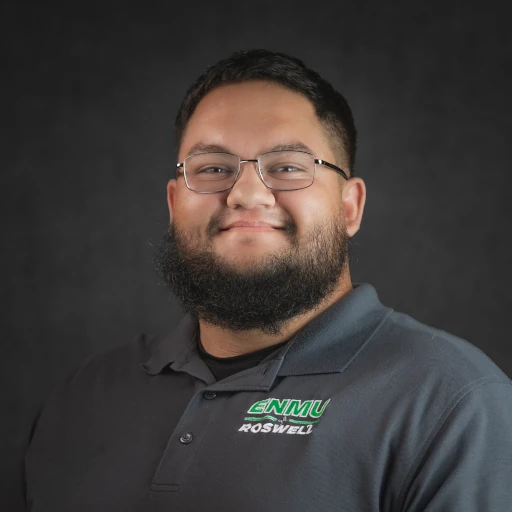
Portrait of Keegan Bain

Keegan Bain

Information Technology Supervisor


Portrait of Jake Morgan

Jake Morgan

System Administrator


Side profile illustration of a Cougar with its mouth open in substition of the staff or faculty members portrait which is not available.

Anthony Munoz

Computer Technician III


Portrait of Eileen Romero

Eileen Romero

Computer Technician II


Portrait of Nathaniel Reynolds

Nathaniel Reynolds

Computer/Lab Technician III


Portrait of Rahbeka Anderson

Rahbeka Anderson

Institutional Research Analyst


Side profile illustration of a Cougar with its mouth open in substition of the staff or faculty members portrait which is not available.

Levin Van

Computer Technician III


Portrait of Greg Tripp

Greg Tripp

Webmaster


Submit A Work Order